
Frequently Asked Questions
Questions sorted by topic
General
Who can I contact for questions regarding digital teaching and/or OpenOlat?
Register here for the digital support meeting.
You can reach the contact persons of the DL-network of your faculty via this support form.
Identifier, Login and Email
Why can't I log in?
If you are unable to log in to a learning platform, please check the following points:
- Does the login with your B-identifier work in another portal, such as User Management or STiNE?
- Have you successfully logged in to the learning platform before? If yes, since when has the login stopped working?
- Were you previously a member of UHH and have now received a new B-identifier? If so, please let us know via the support form.
- What error message do you receive? Please copy it verbatim or take a screenshot. Feel free to contact us via the support form and attach it.
- (OpenOlat) If you want to log in with a B-identifier, make sure that you log in on the OpenOlat login page via the buttons Login with UHH account and then UHH Login. Logging in via Login with OpenOlat account does not work with the B-identifier.
- It might also be due to a browser malfunction. Please try clearing your cookies and cache memory. Instructions for the most common browser versions can be found on the respective manufacturer sites:
| Firefox | Clear cookies | Clear cache | (external links to the Mozilla Support website) |
| Google Chrome |
Clear cookies | Clear cache | (external link to the Google Support website) |
| Edge | Clear cookies | Clear cache | (external links to the Microsoft Support website) |
| Safari | Clear cookies | Clear cache | (external link to the Apple Support website) |
If the suggestions mentioned above do not lead to a solution, please contact the DL-network using the support form.
How do participants in my course who do not have a B-identifier get access to my OpenOlat course?
OpenOlat
External invitation: Course owners can invite persons who do not have a UHH ID to their course using the function Invite external (non-UHH) member. You can find this function via Course administration > Member management > Dropdown menu at the top right next to Add member.

The invited persons receive a notification and can log in to OpenOlat using the Login with OpenOlat account method.
Attention! An account for external members is automatically deactivated after 180 days. Such an account has severely restricted permissions.
You can find out how to obtain fully functional user IDs for the learning platforms and other UHH systems on the RRZ user ID info page.
Why can't I change my email address / my name?
With every login to the learning platform, your university email address and your name are transferred from the central User Management to the learning platform, which is why changes to the email address or name in the learning platform would not be permanently effective.
You can submit a request to change your email address or your name to the ServiceLine.
If you have already requested a change, you can [check] in the central User Management
Courses and Course Participation
Why can't I find people in OpenOlat?
For new OpenOlat users, they must have logged in to OpenOlat once with their B-identifier in order to automatically create an account and be findable in the system under Add member.
Existing OpenOlat accounts are automatically set to Inactive after 730 days of non-use. Such accounts can also no longer be found under Add member in OpenOlat. Inactive accounts with a B-identifier can be automatically reactivated by logging in once with the B-identifier.
Please do not under any circumstances create an invitation as an External member, as this will result in logging in with the B-identifier no longer being possible without our intervention.
Students are missing from my course but appear in STiNE. How do I find them in OpenOlat?
- First-time OpenOlat login: Students who have never logged in to OpenOlat cannot be found in the search. In order for you to be able to manually add students to your course, they must have logged in to OpenOlat once so that they are registered by the system and can thus be added to courses. Go to OpenOlat Login.
- Adding multiple participants: Adding course members manually can be impractical; instead, you can establish course membership via the Lecture ID. Students who have not yet logged in to OpenOlat will then be automatically added to the course upon their first login. Another option is to assign an access code for independent booking of the course.
- Course status: Often participants cannot find a course because it still bears the status "Preparation". To find out the status of your course, go to said course and check the status under "Status" (second icon top left). Then set the status to "Published" so that the course can be found.
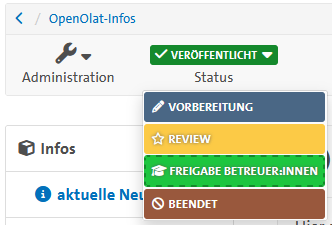
Where has my course from the last semester gone? Why was it finished?
Courses in OpenOlat are automatically finished one week after the set end date, i.e., courses from the summer semester are finished on October 7 and courses from the winter semester on April 7. Finished courses have the following characteristics: The course including personal data remains in existence.
- All course members continue to have access to the course.
- The course is in read-only mode.
- The course is located under Courses in the "Finished" tab.
- This process serves to ensure clarity so that new courses can be found more easily.
If your course has a duration other than the semester cycle, you are free to adjust the dates. Permanent offers must also be provided with a fictitious end date.
Why can't I find my course?
Good to know
The course has not yet been published: For students to be able to access a course in OpenOlat, it must be published. This step is sometimes forgotten. So if you are sure that the course should be found in OpenOlat, ask your course instructor or describe the problem in our support form.
The course does not exist: Not all lectures that you have booked in STiNE also have a digital supplement in OpenOlat, CommSy, or Moodle. If there is no indication of such a course, e.g., in STiNE, please check with your course instructor first.
You still have to book the course in the catalog: Most courses are assigned to you automatically. For this purpose, we at UHH use the Lecture ID from STiNE, which must be stored in the respective course. However, there are also courses that you must book yourself in OpenOlat. Please check the OpenOlat catalog to see if the course you are looking for is one of them. Perhaps you will find other interesting offers during your search that you can also book.
If all these tips do not help, do not despair, but contact us via the support form with as precise information as possible regarding the lecture and the name of the instructor.
Configuring Course Access – Booking Method
Good to know
When you create a course (or another learning resource), you have various options regarding how or for whom you share it. The booking methods combine all existing methods and, since the update to version 17.0, also the options Without booking and Guest access.
To ensure that the materials you post in the course are accessible only to authorized participants of the course (see UrhWissG §60), we recommend limiting the time period for the booking (enrollment) of your course and setting an access code.
If required, you can also regulate the visibility or access separately for individual course elements.
However, if you want to limit the number of participants, manage a waiting list, or use other group-dependent element configurations (e.g., enrollment in project groups), you need an Enrollment [element].
How to proceed
- Select Share in your course under the menu Administration -> Settings.
- These settings can also be made via the publishing process in the course editor.
- Next to Access for members, you can now choose between the following settings:
- Private: Only those persons who are members (participants, coaches, and/or owners) of the learning resource have access. Member management is carried out by the owners via the administration of the course.
- Bookable and open offers: After setting the access to bookable and clicking Save, four offers are available for selection.
- Click on Add offer on the right or select an offer button directly.

- You have the choice between opening courses for self-enrollment (Access code or Freely available) or making courses accessible to anonymous participants (university members: Without booking, worldwide: Guest access):
- Access code: You have the option to generate an access code so that potential participants can register themselves. Additionally, you can set a time limit for registration and activate a confirmation email for self-registered users. Only OpenOlat registered persons who enter this code have access to the course or learning resource.
- Freely available: All OpenOlat registered persons have free access to the course and can register themselves. To obtain access to the course/learning resource, potential participants must enroll by opening the course for the first time. They are thus added to the member management of the course in the participant role. Additionally, there is the option to restrict course access with the “Period” option.
- Without booking: All OpenOlat registered users have access to the course or learning resource but are not entered into member management.
- Guest access: This option allows persons without a user ID worldwide access to the Olat course. Please note: Learning paths CANNOT be shared with guests.
Attention: Remember to limit the time of the booking. After the end of any set booking period, the course is only accessible to students who have already booked. Latecomers can be entered manually via member management.
Further Information:
- The validity of each individual offer can – regardless of the course status – be scheduled and restricted to selected organizational units.
- Authors can view which (access) permissions the various course and system roles have with the current share configuration.
- Participants see all courses in which they are booked under My courses. A distinction is now made between courses in preparation and those that are active.
Other FAQs from the DL Network
In addition to the FAQs on this page, the following other collections are available: